
I built CoreX to answer a practical question: why does a Mac feel slow right now, why did its fans become audible, is memory pressure affecting the workload, and can those answers remain entirely on the device?
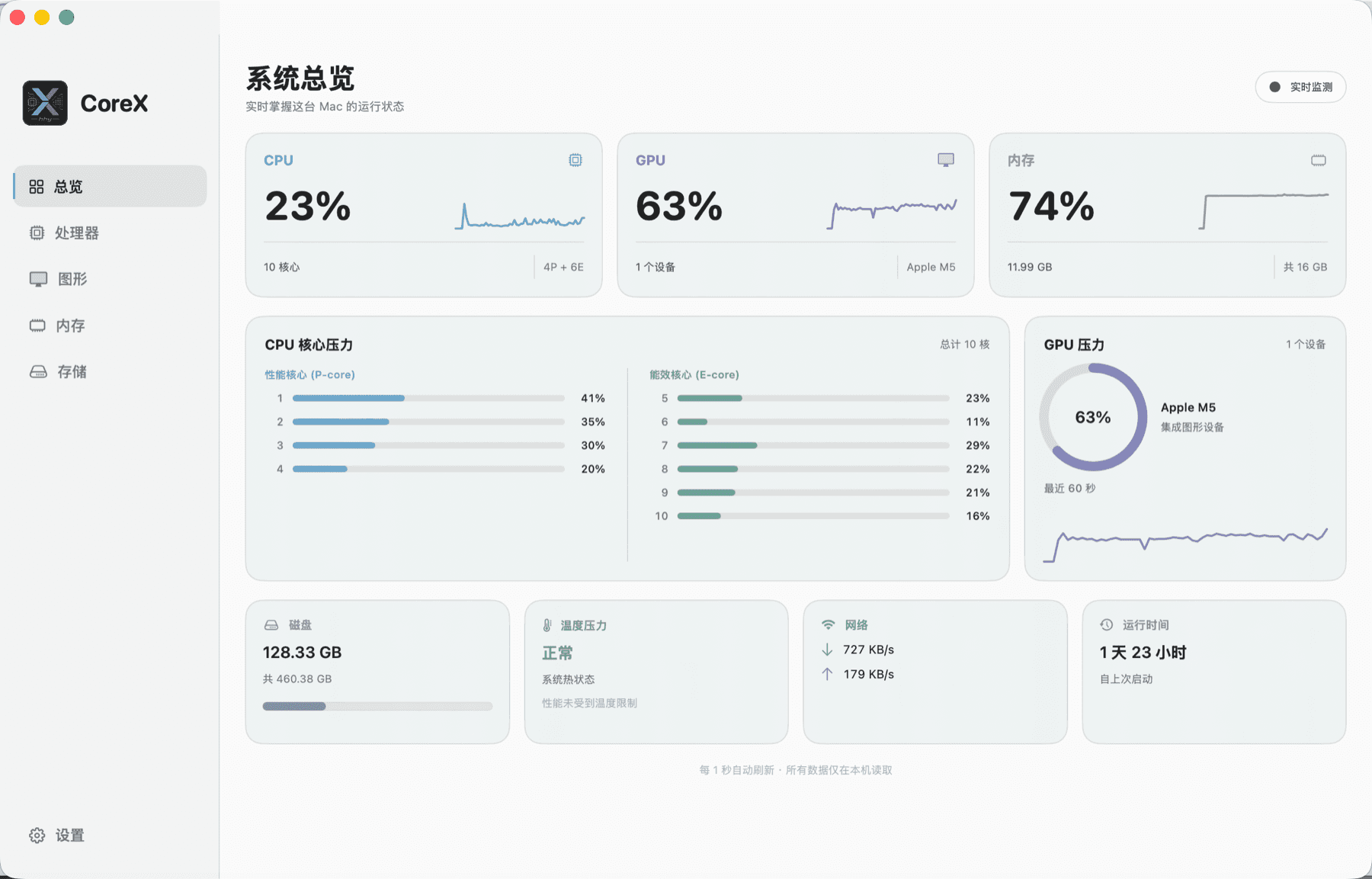
CoreX is a native, local-first macOS system monitor. Its interface is built with Swift 6, SwiftUI, and AppKit. Its sampler uses Mach, IOKit, Metal, Foundation, and Darwin to observe aggregate and per-core CPU load, GPU activity, memory, storage, network throughput, uptime, and system thermal pressure. The main window supports diagnosis, the menu bar supports quick awareness, and settings determine how the tool fits into everyday work.
Download CoreX 1.0 (macOS 14+, Apple Silicon)
Download CoreX-1.0-macOS-arm64.zip · approximately 2 MB
SHA-256:ae116fe638e81e3b2acfa34dd531ebbe4251bfa2b3cae7074a223136a7ea321a
Product boundaries: more data is not automatically better
System monitors tend to fall into two extremes. Some display a few percentages without enough context to explain a problem. Others expose every low-level counter and force the user to find the anomaly. CoreX uses three information layers:
- Overview: CPU, GPU, memory, storage, network, and thermal state for a fast health check.
- Diagnosis: per-core activity, P-core/E-core grouping, live histories, and device details.
- Ambient awareness: a small menu-bar surface for the metrics that matter most.
Sampling is separated from presentation. SystemMonitor produces a normalized snapshot; SwiftUI consumes state. Historical series are bounded rather than allowed to grow forever. Pausing monitoring stops sampling, not merely animation. This keeps collection, presentation, and preferences independently testable.
Mach / IOKit / Metal / Darwin / Foundation
                    │
                    ▼
             SystemMonitor sampler
       deltas, normalization, and clamping
                    │
          ┌─────────┴─────────┐
          ▼                   ▼
    current Snapshot      bounded histories
          │                   │
          └─────────┬─────────┘
                    ▼
       SwiftUI Dashboard + MenuBarExtra
                    │
                    ▼
      AppStorage / alerts / launch policy
Reading real macOS state from Swift
CPU: utilization is a delta between samples
CPU times are cumulative counters. Treating a single read as instantaneous load is incorrect. CoreX calls Mach APIs including host_statistics and host_processor_info for user, system, nice, and idle ticks, retains the previous sample, and calculates:
usage = Δ(user + system + nice) / Δ(user + system + nice + idle)
The same rule applies to aggregate and per-core load. On Apple Silicon, cores are grouped into performance and efficiency groups for presentation. A production implementation must handle the first sample, counter anomalies, allocated processor arrays, and value clamping to avoid misleading startup spikes.
Memory: pressure matters more than a scary percentage
CoreX uses host_statistics64 to read active, inactive, wired, compressed, and free pages. macOS deliberately uses spare memory for caching, so high usage alone is not proof of a problem. The interface combines the current value with history instead of turning one percentage red without context.
GPU: Metal identifies devices; IOKit attempts load sampling
MTLCopyAllDevices() supplies GPU identity and capabilities. Live utilization is read from IOAccelerator performance statistics through IOKit. This is not a uniformly documented, stable metric across every macOS and hardware combination. If a driver does not expose the necessary field, CoreX reports the metric as unavailable instead of inventing zero.
Storage, network, and thermal state
- Storage uses
URLResourceValues.volumeTotalCapacityandvolumeAvailableCapacityForImportantUsage, which better reflects capacity available to important work. - Network sampling aggregates active interfaces through
getifaddrs, excludes loopback, and derives upload and download rates from byte deltas. Interface switches and counter resets must be handled. - Thermal pressure comes from
ProcessInfo.thermalState. It is an operating-system pressure signal—not a sensor temperature—so CoreX labels it nominal, fair, serious, or critical rather than fabricating degrees Celsius.
All readings are collected and rendered locally. CoreX requires no account and does not upload monitoring data.
Why SwiftUI still needs AppKit
SwiftUI is effective for dashboard cards, state-driven presentation, themes, and settings forms. A polished Mac utility also needs precise behavior for window activation, the Dock, application reopening, and the About panel. CoreX deliberately combines both frameworks:
WindowGroupowns the primary window and its sizing constraints.MenuBarExtra(.window)creates an interactive status surface.NSApplicationDelegateAdaptorcontrols termination after the last window closes and restores a hidden window when the Dock icon is clicked.NSApplication.setActivationPolicyswitches between a regular app and a menu-bar-only utility.SMAppServicemanages launch at login.
SwiftUI describes the interface; AppKit closes the lifecycle gaps. That is more robust than forcing a real macOS utility into a single-framework ideology.
Settings are behavior, not decoration
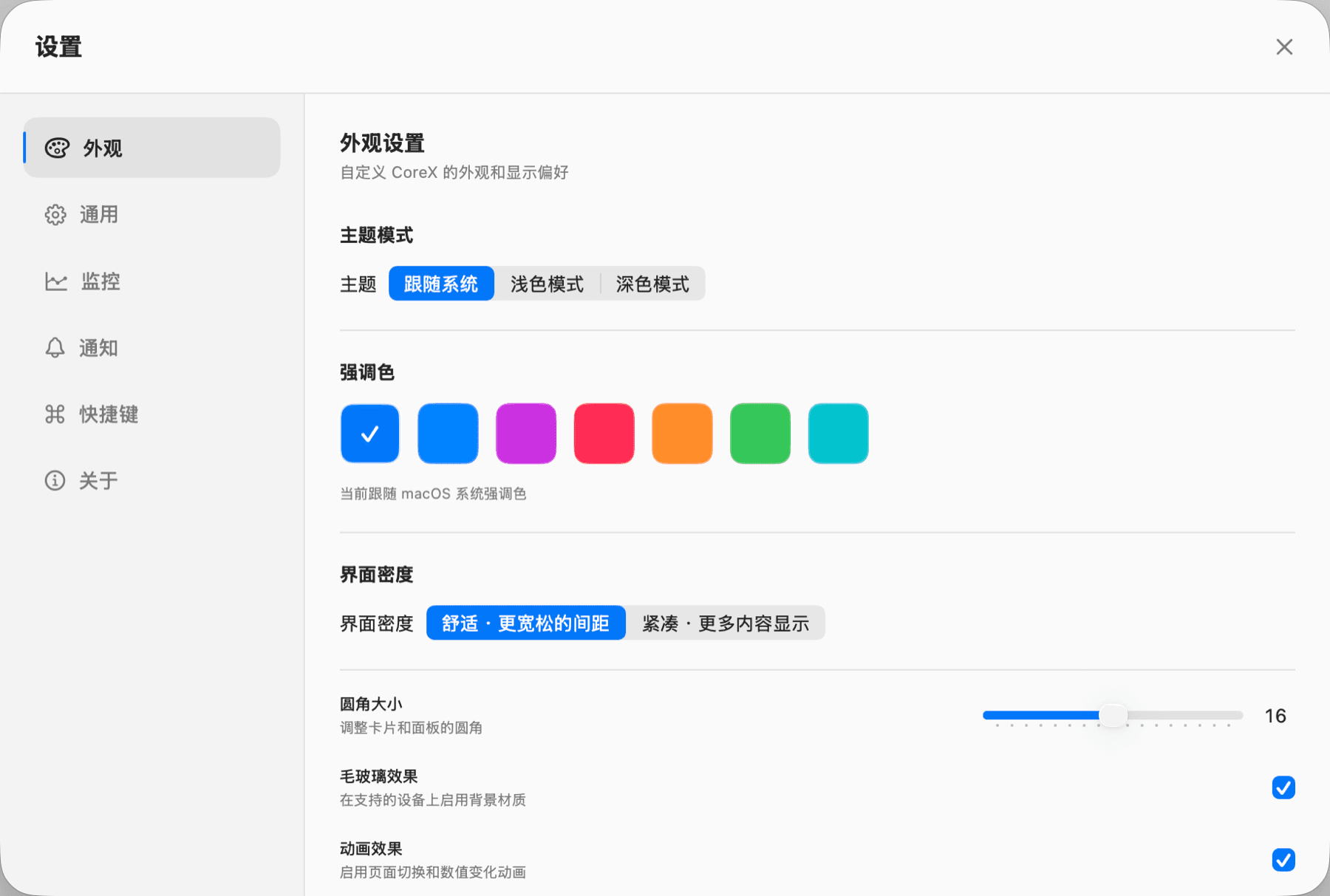
CoreX organizes preferences into Appearance, General, Monitoring, Notifications, Shortcuts, and About. Each setting is intended to connect to runtime behavior:
- system, light, or dark appearance; accent, density, corner radius, glass, and motion;
- launch at login, open-window or menu-bar startup, background operation, and Dock visibility;
- 1/2/5-second intervals, enabled categories, and 60-second/5-minute/15-minute histories;
- icon-only, CPU, or CPU-and-GPU menu-bar content;
- CPU, memory, storage, and thermal-pressure notifications;
- shortcuts for opening the overview and pausing monitoring.
@AppStorage persists preferences, but persistence is not implementation. A Dock setting must change the activation policy. A refresh interval must alter the sampling cadence. Closing behavior must reach the application delegate. I tested each preference as an end-to-end path from UI control to operating-system behavior.
The menu bar is the high-frequency surface
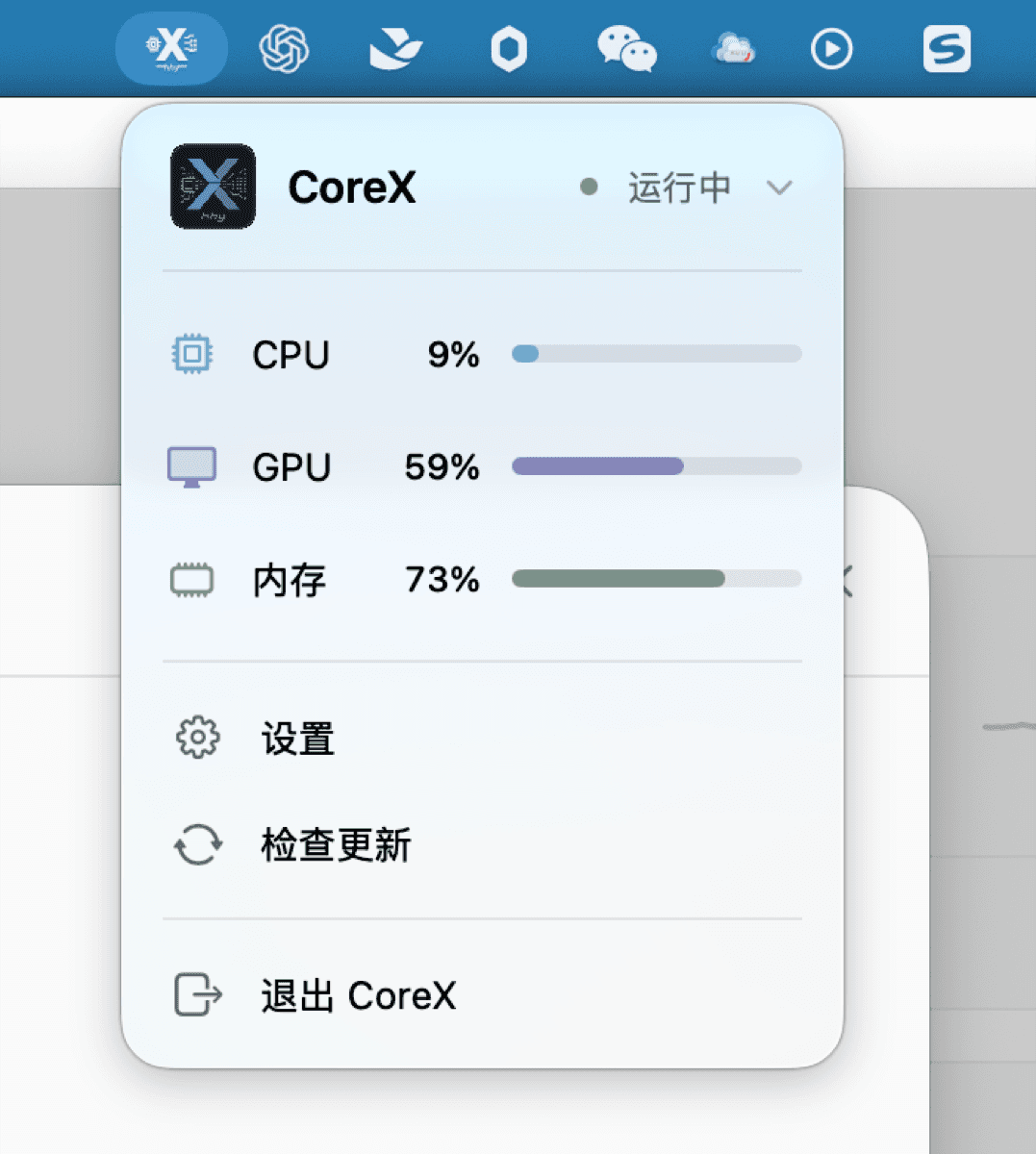
The menu-bar panel deliberately limits itself to CPU, GPU, memory, current status, settings, update checks, and quit. It works well while compiling, running local models, processing video, or switching among heavy applications. The dashboard explains; the menu bar informs without interruption.
Development and packaging environment
CoreX uses Swift Package Manager, targets macOS 14, and links IOKit and Metal. The development machine should use a matched Xcode or Command Line Tools installation. Mixing a Swift compiler and macOS SDK from different toolchain releases can produce an “SDK compiled by a different version of Swift” failure. A dependable release pipeline pins Xcode and builds in a clean environment.
cd MacPulse
./scripts/build-app.sh
open dist/CoreX.app
The build script performs a release build, assembles the .app bundle, generates icons, and signs the result. The current download is an arm64, ad-hoc-signed build intended for evaluation and internal distribution. A broad public release should use a Developer ID Application certificate, Apple notarization, and a stapled notarization ticket.
Supported Macs
| Item | Current download |
|---|---|
| Operating system | macOS 14 Sonoma or newer |
| Processor | Apple Silicon: M1, M2, M3, M4, and M5 families |
| Intel Macs | Not supported by the current arm64 archive; the source can be extended to a universal build |
| Network | Not required during operation, except for update checks |
| Data handling | Monitoring data remains on the device |
| GPU metric | Availability depends on IOKit fields exposed by the system driver |
CoreX is particularly useful for developers, local-LLM users, designers, video professionals, and anyone who wants ongoing visibility into a Mac. It is not a data-center monitoring system, a remote alerting service, or a substitute for Apple Diagnostics.
Download, installation, and security
- Download CoreX 1.0 and unzip it.
- Move
CoreX.appto Applications. - On first launch, right-click the app and choose Open. If Gatekeeper blocks it, confirm Open Anyway under System Settings → Privacy & Security.
- Verify the archive if desired:
shasum -a 256 CoreX-1.0-macOS-arm64.zip
# ae116fe638e81e3b2acfa34dd531ebbe4251bfa2b3cae7074a223136a7ea321a
This test build is not Apple-notarized. That limitation must be explicit; users should not have to discover the release model from an unexplained Gatekeeper dialog.
Engineering lessons
First, system monitoring is primarily a semantics problem, not a charting problem. Cumulative counters require deltas, missing metrics must remain missing, and thermal pressure must not masquerade as temperature.
Second, native quality comes from behavioral closure. Windows, Dock policy, the menu bar, login launch, and preferences become features only when they are wired into the application lifecycle.
Third, distribution is part of the product. Pinned toolchains, architecture labels, signing, notarization, hashes, and installation guidance belong in the design—not as release-day cleanup.
Next steps for CoreX include more resilient GPU compatibility, stronger memory-pressure diagnosis, process-level attribution, a universal binary, and full Developer ID signing and notarization. For a local system utility, trust, accuracy, and low interruption matter more than adding another dashboard.